🌿PowerShell 7 Comprehensive Upgrade Guide: Environment, AI Config, and Modern Syntax
Introduction
This article is a collection of notes I compiled whilst learning PowerShell, primarily addressing two of the most common questions beginners have:
[!NOTE] About This Article's Creation This article was written with my ideas and structure, assisted by AI. I'm being honest with you!
- How do I update the built-in PowerShell on Windows?
- What are the essential commands I need to know?
If you're just starting to learn PowerShell like I was, this article should be an excellent starting point.
Table of Contents
- Version Guide: 5.1 vs 7.x Showdown
- Installation Guide: How to Update to PowerShell 7
- Configuration Guide: Enforcing PowerShell 7 in Antigravity & VS Code
- Syntax Guide: New Toys in PowerShell 7
- Commands Guide: Essential Commands Cheat Sheet
- Formatting Guide: Pipelines and Output Formatting
- Concepts Guide: PowerShell's Design Philosophy
Version Guide: 5.1 vs 7.x Showdown
Put simply: The blue one built into Windows has essentially "stopped evolving".
Whether you're running Windows 10 or Windows 11, the default built-in version is Windows PowerShell 5.1. Microsoft, concerned about backwards compatibility (they're worried old scripts might break), daren't touch it. If you want the powerful new features, you'll need to install the new PowerShell 7 yourself (now simply called PowerShell, without the Windows prefix, and sporting a black logo).
⚔️ PowerShell Version Comparison Table
| Feature | Windows PowerShell (Legacy/Built-in) | PowerShell (Modern/Requires Installation) |
|---|---|---|
| Version | 5.1 (Eternally unchanged) | 7.4 / 7.5 (Continuously updated) |
| Core Framework | .NET Framework 4.x (Legacy technology) | .NET 8 / 9 (Modern technology, blazing performance) |
| Operating Systems | Windows only | Windows, Linux, macOS - the lot |
| Icon Colour | 🟦 Blue | ⬛ Black (much cooler) |
| Purpose | System maintenance, backwards compatibility (Legacy) | Developer tools, cloud automation (Modern) |
| Update Method | Via Windows Update (mostly just bug fixes) | Manual download or command-line update |
🧐 Is there a difference between Win 10 and Win 11?
Absolutely none.
Both come with version 5.1 built-in. So, if you buy a brand new computer, open PowerShell, and see a blue window—congratulations, you are driving an antique car. Although it still runs, it simply cannot understand many modern syntax features (like the ternary operator ? : or ||).
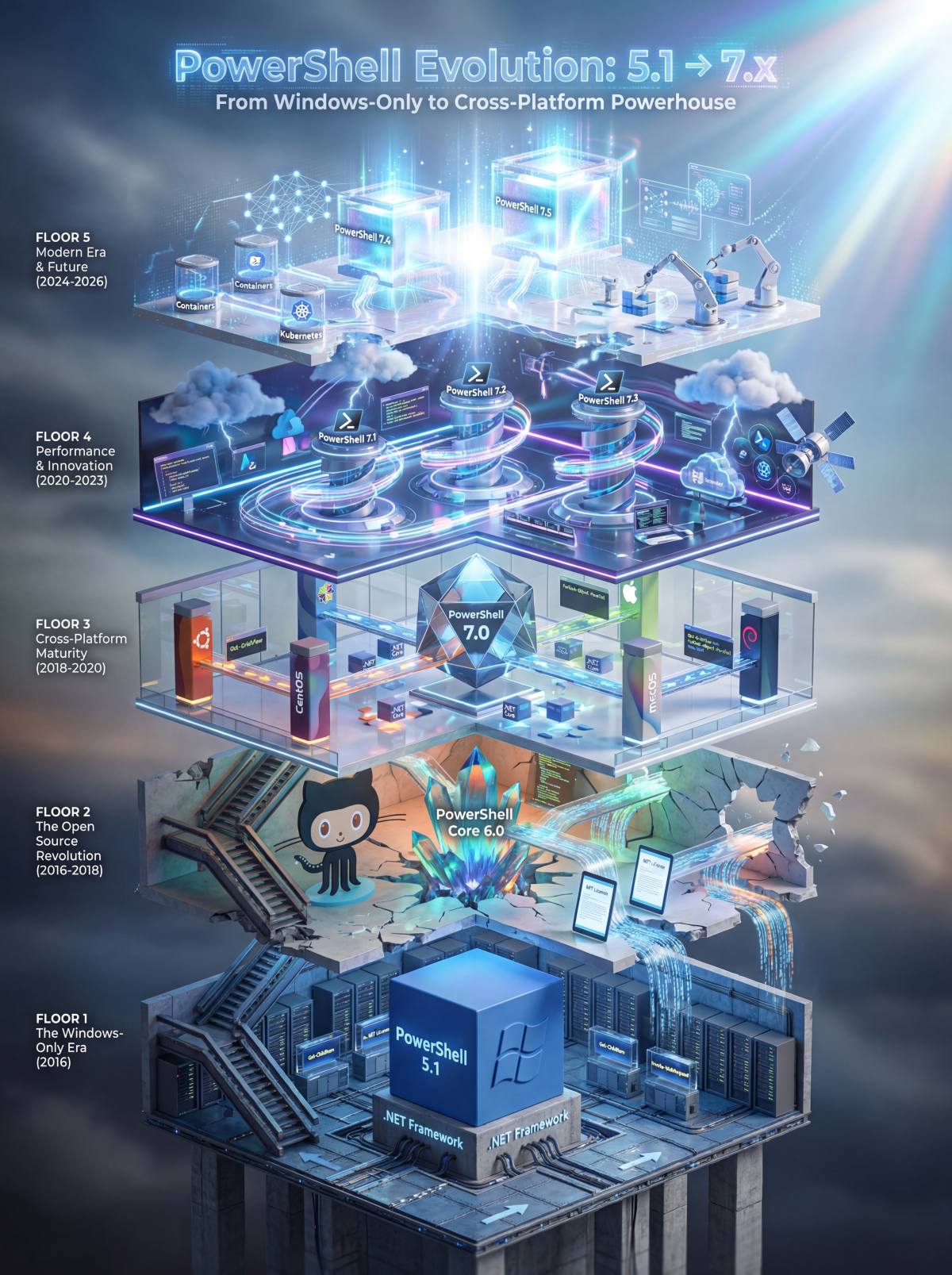
This visualization adopts the "Frameless Tech-Lapse" design concept: Five-layer exhibition structure (from bottom to top):
- Bottom Layer - Windows Exclusive Era (PowerShell 5.1, 2016)
- Second Layer - Open Source Revolution (PowerShell Core 6.0, 2016-2018)
- Third Layer - Cross-Platform Maturity (PowerShell 7.0, 2018-2020)
- Fourth Layer - Performance & Innovation (PowerShell 7.1-7.3, 2020-2023)
- Top Layer - Modern & Future (PowerShell 7.4-7.5, 2024-2026)
Installation Guide: How to Update to PowerShell 7
Let's not bother clicking download buttons on the Microsoft website—that's not terribly elegant. Since you're learning commands, we'll use Microsoft's most recommended package manager: Winget.
Step One: Check Your Current Version
Enter the following command in your PowerShell window (this is the standard method for checking environment variables):
$PSVersionTable.PSVersion
If the output shows Major: 5, Minor: 1, you're on the legacy version.
Step Two: Install/Update to the Latest PowerShell 7
We'll use the winget command, which fetches the latest version from Microsoft's official repository and installs it. Simply enter:
winget install Microsoft.PowerShell
What Happens When You Run This Command?
- It fetches the latest stable release.
- After installation, you'll have two PowerShell versions on your computer:
- The original blue one (Windows PowerShell) → Keep it for safety.
- The new black one (PowerShell 7) → Use this for development and practice going forward.
[!TIP] Side-by-Side Deployment In software architecture, this is known as parallel deployment. Microsoft, adhering to the Open/Closed Principle from SOLID—open for extension, closed for modification—chose not to overwrite the old 5.1 version. Instead, they allow you to install an entirely new 7.x version, ensuring your old system remains intact whilst you enjoy improved performance.
Configuration Guide: Enforcing PowerShell 7 in Antigravity & VS Code
As a developer striving for peak performance, nothing is more irksome than setting up a shiny new IDE—like Google's latest Antigravity or the classic VS Code—opening the Terminal, and being greeted by that "old-school", .NET Framework 4.8-based Windows PowerShell (v5.1).
We've already installed the cross-platform, .NET 8/9-based PowerShell 7 (Core), so why does the editor turn a blind eye?
This comes down to Windows environment variable priorities and default editor behaviour. Although Antigravity is Google's latest cutting-edge tool, its configuration logic shares roots with the VS Code ecosystem. Most editors adopt a "Convention over Configuration" principle, defaulting to the most stable powershell.exe (Legacy) found in the system path. To break this convention, we must explicitly inject dependencies in the configuration file to enforce the execution path.
Practical Steps: Modifying settings.json
I strongly recommend editing settings.json directly. This aligns with the spirit of Infrastructure as Code (IaC)—codifying your environment configuration.
1. Open Configuration File
In Antigravity (or VS Code), press Ctrl + Shift + P to open the Command Palette, and type Open Settings (JSON).
2. Inject Configuration Code
Add the following configuration to your JSON object. This code achieves two things:
- Define Profile: Explicitly declare a profile named "PowerShell 7" and specify its absolute path.
- Set Default: Point the editor's default Terminal to this newly defined Profile.
{
    "terminal.integrated.profiles.windows": {
        // [Key Strategy] We deliberately use the name "Windows PowerShell" here
        // So that when Agents or legacy plugins try to call the default name, they get v7 instead
        "Windows PowerShell": {
            "path": "C:\\Program Files\\PowerShell\\7\\pwsh.exe",
            "icon": "terminal-powershell",
            "args": [
                "-NoLogo"
            ]
        },
        // Just in case you really need the legacy version, we rename it for backup
        "Legacy PowerShell 5": {
            "path": "C:\\WINDOWS\\System32\\WindowsPowerShell\\v1.0\\powershell.exe",
            "icon": "terminal-powershell"
        }
    },
    // Point all default entry points to this "hijacked" profile
    "terminal.integrated.defaultProfile.windows": "Windows PowerShell",
    // Even the automation profile points profile points to it
    "terminal.integrated.automationProfile.windows": {
        "path": "C:\\Program Files\\PowerShell\\7\\pwsh.exe",
        "args": [
            "-NoLogo"
        ]
    },
}
3. Advanced Concept: Why Do We Need automationProfile?
You might ask, "I already changed defaultProfile, why is the AI Agent still dense?"
In software architecture, this is a detail of Separation of Concerns:
- Interactive Shell: This is for you, prioritizing user experience (loading themes, history).
- Automation Shell: This is for programs (like AI Agents, Task Runners). Editors often default to the legacy
powershell.exefor compatibility stability.
Therefore, if you want Antigravity's AI assistant to write scripts using the powerful syntax of PowerShell 7, you must explicitly configure the automationProfile.
[!CAUTION] Must "Fully Restart" After Configuration Simply closing the Terminal panel is not enough after changing
automationProfile. Since the AI Agent's process is typically loaded at IDE startup, you must completely close and restart Antigravity or VS Code to fetch the new PowerShell 7 path. Only then will your AI assistant become smarter!
4. Real-world Verification: The AI Agent's Upgrade Journey
This isn't a joke; the AI Assistant collaborating on this very article went through this exact process.
- Phase 1: We only changed
defaultProfile, and the Agent reported it was still stuck on PowerShell 5.1. - Phase 2: We added the
automationProfilebut hadn't restarted yet. The Agent still reported version 5.1. - Phase 3: We completely closed and restarted the IDE. The Agent finally excitedly reported: "
Name: PSVersion, Value: 7.5.4".
This proves that automationProfile is genuinely effective and that "restart to take effect" is an absolute law. Now, my AI Assistant is finally running on the latest core!
Syntax Guide: New Toys in PowerShell 7
Since we've upgraded to PowerShell 7, it's time to experience what 5.1 couldn't do. Here are a few of the most practical new syntax features that make your scripts feel more like a modern programming language:
1️⃣ Ternary Operator
If you've written C# or JavaScript, this will be familiar. In 5.1, we had to write verbose if...else blocks; now, it's a one-liner.
# Syntax: <Condition> ? <ValueIfTrue> : <ValueIfFalse>

$score = 85
$result = ($score -ge 60) ? "Pass" : "Fail"
Write-Host $result  # Output: Pass
2️⃣ Pipeline Chain Operators
Common in Linux Bash, these are now in PowerShell! They control the "dependency" of command execution.
&&(AND): Execute the right side only if the left side succeeds (Success).||(OR): Execute the right side only if the left side fails (Failure).
# Example: Change directory first; if successful, list files
Set-Location "C:\MyProject" && Get-ChildItem

# Example: Try connecting to a server; if it fails, issue a warning
Test-Connection "192.168.1.1" -Count 1 || Write-Warning "Server is down!"
3️⃣ Null Coalescing Operator
Used to handle cases where a variable is $null, providing a default value.
# Syntax: <Variable> ?? <DefaultValue>

$myConfig = $null
$finalConfig = $myConfig ?? "DefaultSettings"
Write-Host $finalConfig  # Output: DefaultSettings
These modern syntax features make your scripts more concise and logically clear. If you try running these in the old 5.1, it will throw an error immediately—which is exactly why upgrading our environment is essential!
3. Key Details Analysis
- Path Escaping: Many developers copy the path directly from File Explorer
C:\Program Files\..., which causes syntax errors in JSON. It must be written asC:\\Program Files\\.... - Foreign Key Association: The string value for
defaultProfile.windowsmust exactly match the Key inprofiles.windows(in this case,"PowerShell 7").
Verify Results
After saving, close the current Terminal and open a new one (shortcut Ctrl + ). Enter $PSVersionTable` to verify.
If you see PSEdition showing as Core and PSVersion as 7.x.x, congratulations! Your development environment has successfully broken free from the shackles of the past.
Commands Guide: Essential Commands Cheat Sheet
PowerShell accommodates users transitioning from Linux (Bash) or legacy Windows (CMD) by including numerous built-in "aliases". When you type ls, it's not actually ls—its true name is Get-ChildItem. PowerShell follows a "Verb-Noun" convention, which, whilst more verbose, is semantically crystal clear.
The command to clear your screen is cls (from CMD) or clear (from Linux), and their true identity is Clear-Host.
📁 File and Directory Operations (Survival Basics)
| Common Alias | Full Cmdlet | Function | Notes |
|---|---|---|---|
| cls, clear | Clear-Host |
Clear the screen | Tidy up that cluttered window. |
| ls, dir | Get-ChildItem |
List files and folders | See what's in the current location. |
| cd, chdir | Set-Location |
Change directory | Teleport to a different location. |
| pwd | Get-Location |
Show current location | When you're lost, this tells you where you are. |
| mkdir, md | New-Item -Type Directory |
Create a new folder | Forge your own territory. |
| cp, copy | Copy-Item |
Copy files or folders | The command-line equivalent of Ctrl+C / Ctrl+V. |
| mv, move | Move-Item |
Move or rename | Relocate files or give them new names. |
| rm, del, erase | Remove-Item |
Delete files or folders | ⚠️ Dangerous command—deleted items typically bypass the Recycle Bin, so do be careful! |
| cat, type | Get-Content |
View file contents | Outputs the contents of a text file directly to the terminal. |
| ni, touch (not built-in) | New-Item |
Create a new file | For example, ni test.txt creates an empty file. |
⚙️ System and Processes (Slightly More Advanced)
| Common Alias | Full Cmdlet | Function | Notes |
|---|---|---|---|
| ps | Get-Process |
List running processes | See what the computer is currently doing (similar to Task Manager). |
| kill | Stop-Process |
Terminate a process | Force-close a frozen programme (by Process ID). |
| echo, write | Write-Output |
Output text to screen | Typically used to display messages or test variables. |
| man, help | Get-Help |
View documentation | This is the most powerful command! When you forget how to use something, type help ls and it'll teach you. |
| h, history | Get-History |
Show command history | Forgotten what brilliant command you just ran? Use this to check. |
Formatting Guide: Pipelines and Output Formatting
The default PowerShell output can sometimes resemble a right old mess, with so much information it's rather off-putting. To master formatting, you must first learn PowerShell's soul—the Pipeline, that vertical bar | (typically found above the Enter key).
The concept is: Pass the output from the left command to the right command for processing. Think of it like a factory production line—the front generates the data, the back packages it nicely.
1️⃣ Excel Spreadsheet Style: Format-Table (alias ft)
This is the most commonly used. Use it when you have few columns and want everything at a glance.
ls | ft -AutoSize
-AutoSize automatically adjusts column widths, eliminating unnecessary whitespace—jolly useful!
2️⃣ Detailed Card View: Format-List (alias fl)
When an object has loads of properties (for instance, a Process with dozens of attributes), a table becomes cramped. That's when you use List mode, which transforms each record into a "card".
ls | fl
You'll see detailed file information, including creation time and last write time, displayed as a vertical list. Essential when troubleshooting errors or examining detailed settings.
3️⃣ Show Only What I Want: Select-Object (alias select)
This isn't formatting—it's filtering. Rather like SQL's SELECT statement. Often the screen is cluttered because there's too much noise; remove the noise and the display becomes clean.
ls | select Name, Length
4️⃣ Sort It for Me: Sort-Object (alias sort)
How does one make sense of jumbled data? Sort it, naturally!
ls | sort Length              # Ascending order
ls | sort Length -Descending  # Descending order
🎩 Combination Demo: Finding the Top 5 Largest Files
In software development, there's a principle called the Chain of Responsibility pattern—PowerShell's pipeline embodies this concept. Let's chain them together:
ls | sort Length -Descending | select Name, Length -First 5 | ft -AutoSize
In plain English:
ls(list files) → pass to the next stagesort(order by size, largest first) → pass to the next stageselect(take only Name and Length columns, limit to first 5) → pass to the next stageft(display as auto-sized table)
💎 Hidden Gem: Out-GridView (alias ogv)
If you find typing formatting commands rather tiresome, Microsoft has left a treat for Windows users. This command opens a graphical window with a table where you can click to sort and search!
ps | ogv
Give it a go! It pops up a window showing all running programmes—terrifically convenient.
[!WARNING] Professional Note When using
Format-TableorFormat-List, do remember: The Presentation Layer must always come last.These commands transform useful "Data Objects" into "Format Objects".
- ❌ Wrong:
ls | ft | sort Length(You've converted it to a graphical table, then asked it to sort by length—it no longer recognises what length is)- ✅ Correct: Complete all operations (sorting, filtering) first, then format as the final step
Concepts Guide: PowerShell's Design Philosophy
PowerShell's design philosophy is object-based, which is quite different from Linux's pure text stream approach.
For example, when you run ls (i.e., Get-ChildItem), it doesn't return a bunch of text—it returns a collection of "file objects".
- This means you can access properties on these objects.
- For example:
ls | Select-Object Name, Length(to list only filenames and sizes).
[!TIP] Advice for Beginners Don't try to memorise everything by rote! Make good use of the Tab key. When typing a command in PowerShell, press Tab and it will auto-complete the command or filename for you. That's the secret to why engineers appear to type so quickly. 😏
- first edition time: 2026-02-06